Basic Commands for Neovim
Learn some basic commands to use in Neovim.
- Tutorials
- Editors
- Neovim
What is Neovim?
Neovim is a text editor that runs in the terminal. It is an enhanced version of Vim, created to improve the user experience and make maintenance easier. It is very, very fast. Many people, including myself, say: “Once you try Neovim, there’s no turning back.”
It is a very powerful text editor with many features, but don’t worry: you don’t need to know all of them to use it. Over time, you will learn them. You can also customize it to your liking with plugins, themes, keymaps, settings, and more.
To use Neovim, you first need to install it. You can learn how to do that in the following link. This will install a completely clean version of Neovim, without plugins or additional configuration, just the editor.
Configuring Neovim is a whole different world. However, you can choose to use LazyVim, which is a Neovim configuration that comes with plugins, themes, and many tools ready to use. This way, you will save a lot of configuration time and can go straight to using it. There are many other configurations, but I recommend LazyVim to start getting familiar with Neovim. This is my Neovim configuration in case you want to check it out: My nvim setup.
You may feel a bit lost when using it at first, but don’t worry. Here I will show you some basic commands to help you get started.
Neovim Modes
You should know that Neovim has different modes:
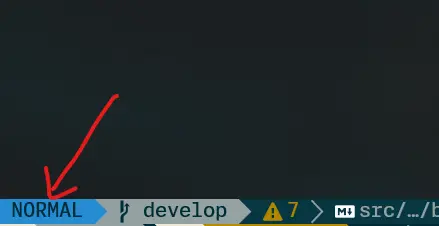
- Normal mode: The default mode, where you can navigate the document, copy, paste, cut, etc.
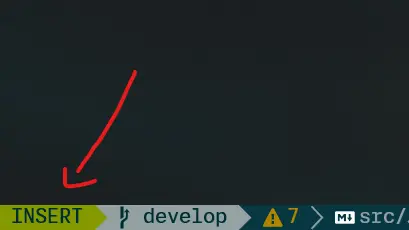
- Insert mode: The mode where you can type in the document.
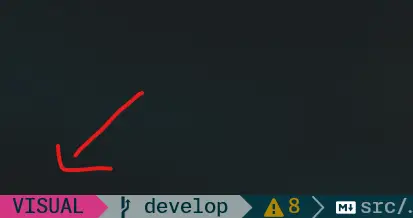
- Visual mode: The mode where you can select text.
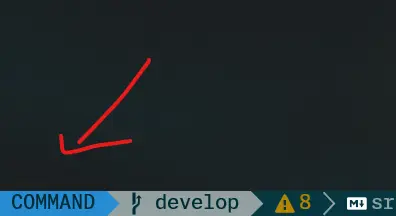
- Command mode: The mode where you can run Neovim commands.
- Terminal mode: The mode where you can run terminal commands.
I have a plugin that shows me which mode I am in, but if you do not have one, you can see it in the bottom-left corner. It will show the mode you are currently in:
- Normal mode:
- Insert mode:
- Visual mode:
- Command mode:
- Terminal mode:
Commands
Basics
| Command | Description |
|---|---|
| i | Enter Insert mode |
| Esc | Exit any mode and return to Normal mode |
| v | Enter Visual mode |
| : | Enter Command mode |
| o | Create a new line below the cursor and enter Insert mode |
| O | Create a new line above the cursor and enter Insert mode |
| zz | Center the cursor on the screen |
| u | Undo changes |
| Ctrl + r | Redo changes |
| :q | Exit Neovim |
| :w | Save changes |
| :wq | Save changes and exit Neovim |
Navigation
| Command | Description |
|---|---|
| h | Move the cursor to the left |
| j | Move the cursor down |
| k | Move the cursor up |
| l | Move the cursor to the right |
| 0 | Move the cursor to the beginning of the line |
| $ | Move the cursor to the end of the line |
| % | Move the cursor to the next matching pair of characters, such as (), {}, [] |
| Ctrl + e | Scroll down |
| Ctrl + y | Scroll up |
| gg | Move the cursor to the beginning of the document |
| G | Move the cursor to the end of the document |
| w | Move the cursor to the beginning of the next word |
| b | Move the cursor to the beginning of the previous word |
| e | Move the cursor to the end of the next word |
| Ctrl + u | Scroll the screen several lines up |
| Ctrl + d | Scroll the screen several lines down |
Change uppercase and lowercase
| Command | Description |
|---|---|
| veU | Convert the selection to uppercase |
| veu | Convert the selection to lowercase |
Operations with numbers
| Command | Description |
|---|---|
| 4j | Move the cursor 4 lines down |
| 6k | Move the cursor 6 lines up |
You can use any number with any direction. For example: 10j, 3k, 5w, or 2b.
Text Selection
| Command | Description |
|---|---|
| viw | Select the word under the cursor |
| vec | Replace from the cursor position to the end of the word and enter Insert mode |
| ciw | Replace the word under the cursor and enter Insert mode |
| yiw | Copy the word under the cursor |
| diw | Delete the word under the cursor and return to Normal mode |
| vi( | Select the content inside parentheses. Works with other pairs of characters |
| ci” | Replace the content inside double quotes and enter Insert mode. Works with other pairs of characters |
| va( | Select the content inside parentheses and the parentheses themselves. Works with other pairs of characters |
| da( | Delete the content inside parentheses and the parentheses themselves. Return to Normal mode. Works with other pairs of characters |
| ca” | Replace the content inside double quotes and the quotes themselves. Enter Insert mode. Works with other pairs of characters |
Copy, paste, and cut
| Command | Description |
|---|---|
| yy | Copy the line under the cursor |
| dd | Cut the line under the cursor |
| p | Paste after the cursor. If you copied a full line, it pastes below |
| P | Paste before the cursor. If you copied a full line, it pastes above |
| x | Cut the character under the cursor |
| vy | Select the character under the cursor and copy it |
Search and replace
| Command | Description |
|---|---|
| / | Search for the word you type throughout the document |
| n | Go to the next occurrence |
| N | Go to the previous occurrence |
| fh | Search for the first occurrence of the letter h after the cursor. Works with any character |
| Fh | Search for the first occurrence of the letter h before the cursor. Works with any character |
| r | Replace the character under the cursor with the character you specify |
| # | Search for the word under the cursor backward |
| * | Search for the word under the cursor forward |
| :%s/aaa/bbbb/g | Replace all occurrences of aaa with bbb throughout the document |
Quick practice
If you want to start practicing, you can follow these steps:
- Open a file with
nvim file.txt. - Press
ito enterInsertmode. - Write a sentence.
- Press
Escto return toNormalmode. - Move around with
h,j,k, andl. - Use
yyto copy a line. - Use
pto paste it below. - Use
/wordto search for a word inside the file. - Save the changes with
:w. - Exit Neovim with
:q.